

If you have ever changed a page’s URL, deleted old content, or moved your site to a new domain, you have probably wondered how to protect your traffic and rankings in the process.
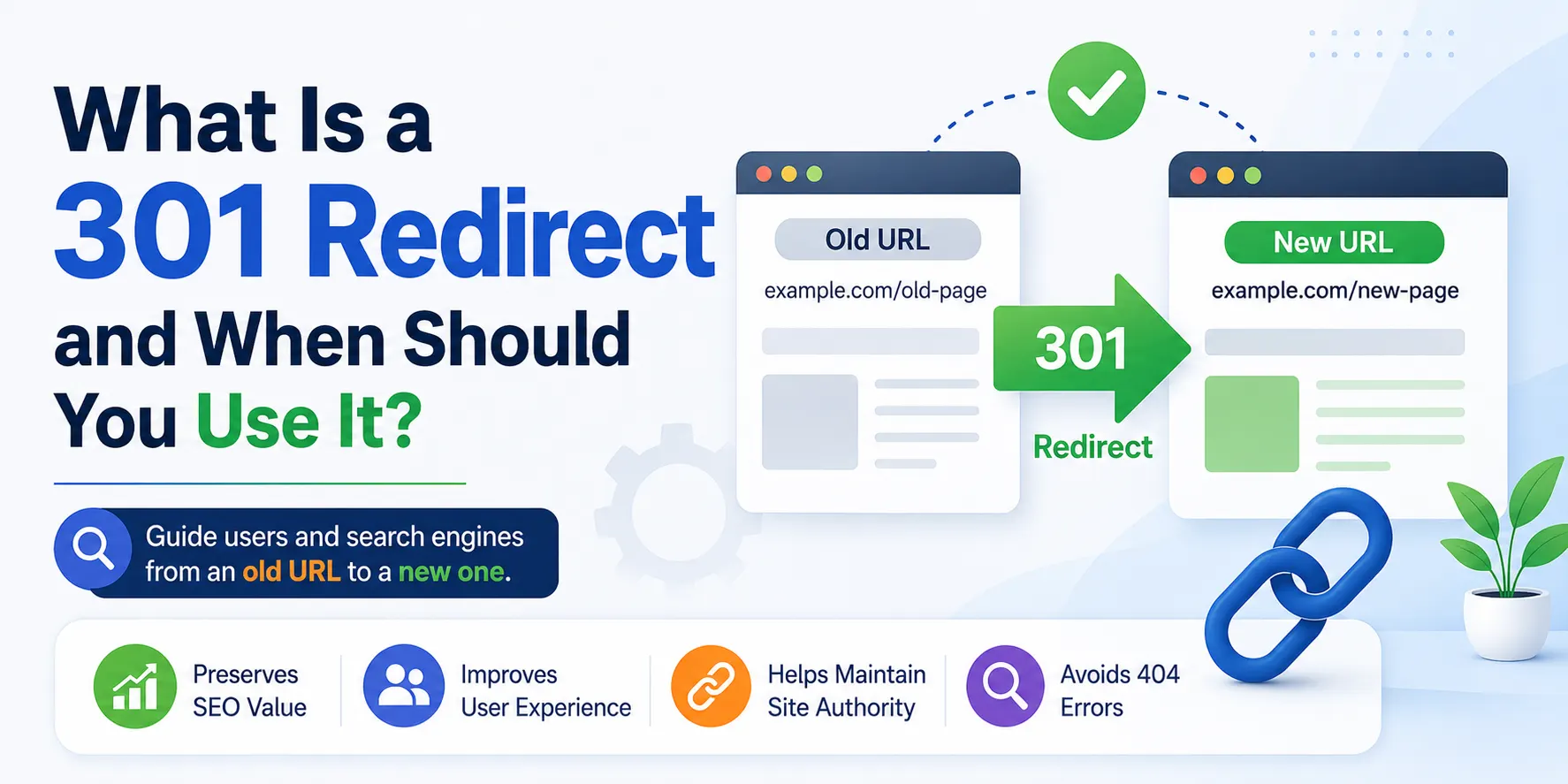
This is where a 301 redirect comes in. It tells browsers and search engines that a page has permanently moved to a new address, so visitors land in the right place and your SEO value carries over.
This guide covers what it is, how it works, when to use one, and the mistakes to avoid along the way.
What Is a 301 Redirect?
A 301 redirect is an HTTP status code that tells a browser or search engine a webpage has permanently moved to a new URL. When someone tries to visit the old address, the server automatically sends them to the new one instead of showing a broken page.
Think of it like updating your mailing address. When you move house, you set up mail forwarding so letters sent to your old address still reach you.
A redirect works the same way for a URL: anyone who clicks an old link, types in an outdated address, or opens a bookmark still ends up exactly where they need to be.
The “301” Explained
Every time a browser requests a page, the server responds with a status code. A 200 OK means the page loaded normally. A 404 Not Found means nothing exists at that address. Codes in the 300 range, including 301 and 302, signal some form of redirection.
The number 301 specifically stands for “Moved Permanently.” That distinguishes it from temporary codes like 302 or 307, which tell search engines the original URL is still the one to index, just unavailable for now.
How It Works
Here’s what happens behind the scenes:
- A visitor or search engine bot requests the old URL.
- The server responds with a 301 status code and includes a Location header pointing to the new URL.
- The browser or crawler automatically requests the new URL.
- The server returns a normal 200 OK response along with the actual content.
This exchange usually happens in a fraction of a second. Most visitors never notice it at all, aside from seeing the address bar update.
How to Check if a Redirect Is Working
You can verify a redirect using a few simple methods. Browser developer tools show the full chain of status codes for any page. Command-line tools like cURL let you inspect the HTTP headers directly, including the Location header and final response code.
Free online redirect checkers do the same thing without any technical setup.
Testing matters because a redirect that looks correct in your CMS settings can still fail if it points to the wrong destination or accidentally creates a loop.
Why 301 Redirect Matters for SEO and User Experience
Link Equity and Ranking Power
One of the biggest reasons site owners rely on this technique is link equity, sometimes called PageRank. When a page has earned backlinks and rankings over time, a permanent move using the correct status code passes nearly all of that authority to the new URL.
There was a long-standing belief that redirects caused a 15% loss in ranking power with each hop.
Google clarified in 2016 that this isn’t really the case anymore, and that 30x redirects don’t meaningfully leak PageRank. Still, it’s smart to keep the chain as short as possible and avoid stacking multiple redirects.
Preventing Broken Links and 404 Errors
Without a proper redirect in place, anyone clicking an old link, whether internal or from another site, lands on a dead page. That creates a frustrating experience and gives search engines a reason to drop the page from their index entirely.
Better User Experience
Search engines aside, a smooth handoff from an old URL to a new one keeps visitors engaged instead of bouncing. People rarely notice when it happens correctly, which is exactly the point.
Impact on AI Visibility
As more discovery happens through AI tools and chat-based search, this kind of redirection generally doesn’t change whether your content gets surfaced. That said, AI systems sometimes cite outdated pages based on older training data, so pointing those old URLs to relevant, updated content helps avoid a confusing experience for anyone who clicks through.
How 301 Redirect Compares to Other Redirect Types
Permanent vs. Temporary (301 vs. 302)
The core difference comes down to intent. A permanent move tells search engines to update their index and transfer ranking signals to the new address. A 302, by contrast, signals that the move is temporary and the original URL should stay indexed.
Use a temporary redirect for things like seasonal promotions, A/B tests, or holding pages you plan to revert.
307 and 308
A 307 functions like a 302 but guarantees the request method (GET, POST, etc.) won’t change during the redirect, which matters for forms and APIs. A 308 is the permanent equivalent, behaving like the topic of this article but without altering the method either.
Meta Refresh, JavaScript, and PHP Redirects
- Meta refresh: Uses an HTML tag to reload the page after a delay. It works but isn’t considered an SEO best practice.
- JavaScript redirects: Run a script that sends the user to a new page after the original loads. Search engines can usually follow them, but it’s not the most reliable method.
- PHP redirects: Use a short header() function at the top of a script to send users to a new location server-side. This is generally more dependable than client-side scripts.
For most permanent changes, a proper server-level status code beats all three of these alternatives.
When Should You Use This Type of Redirect?
There are several common situations where this is the right tool for the job.
- Changing a URL or slug. Fixing a typo, shortening a path, or reorganizing your folder structure all require pointing the old address to the new one.
- Deleting a page with a replacement. If a product is discontinued or a blog post gets merged into a newer guide, redirect the old URL to its closest equivalent.
- Consolidating duplicate or competing content. When multiple pages target the same keyword and end up competing with each other, known as keyword cannibalization, combining them into one stronger page and redirecting the rest can improve rankings.
- Migrating to a new domain. Every old URL needs a corresponding destination on the new domain, ideally mapped out in advance for large sites.
- Switching content management systems. Moving from one platform to another, such as Shopify to WooCommerce, usually changes your URL structure entirely.
- Moving from HTTP to HTTPS. Once your SSL certificate is active, redirect the insecure version to the secure one across the whole site.
- Resolving duplicate URL variants. www versus non-www, trailing slashes, and uppercase versus lowercase paths can all create duplicate content if left unaddressed.
- Phased website launches. When rolling out a new site in stages, map redirects for the pages that are ready and use temporary ones for the rest.
- Fixing reported 404 errors. Google Search Console often surfaces broken URLs you didn’t even know existed, sometimes from old backlinks or previous versions of your site.
When You Should Avoid Using It
Not every situation calls for a permanent move. Skip it in these cases:
- Temporary content changes. Seasonal pages or short-term promotions should use a temporary redirect so the original URL stays in the index.
- A/B testing. Permanent redirects can cause search engines to merge your test variations, which skews results.
- Pages with no good replacement. If there’s truly nothing relevant to send visitors to, a proper 404 or 410 response is more honest than dumping them on your homepage.
How to Set Up 301 Redirect
On Apache Servers (.htaccess)
Most Apache-based hosting lets you add rules directly to your .htaccess file. A simple single-page rule looks like this:
[CODE]
Redirect 301 /old-page.html /new-page.html
[/CODE]
For more complex patterns, like redirecting an entire folder or matching variable URL parameters, the mod_rewrite module offers more flexibility through RewriteCond and RewriteRule directives. Always back up your .htaccess file before editing it, since a small mistake can take your whole site offline.
On Nginx
Nginx doesn’t use .htaccess, but you can achieve the same result in your server block configuration:
[CODE]
location /old-page/ {
return 301 /new-page/;
}
[/CODE]
On Windows/IIS
IIS handles this through the URL Rewrite module in the server’s configuration manager, or by editing the web.config file with rewrite rules similar in structure to Apache’s.
Through Cloudflare
If your DNS runs through Cloudflare, you can set up redirect rules without touching server files at all. Just create a rule, define the source path, set the destination and status code, and deploy it.
Using a CMS or Plugin
Most modern platforms have this built in:
| Platform | Where to find it |
| WordPress | Redirection plugin or Yoast SEO Premium |
| HubSpot | Settings > Website > Domains and URLs |
| Wix | SEO & GEO dashboard > URL Redirect Manager |
| Webflow | Site settings > Publishing |
| Shopify | Content > Menus > URL Redirects |
| Squarespace | Developer tools panel > URL mappings |
Managing Redirects After Setup
Once created, most tools let you edit, view, or delete entries as needed. Some platforms, like Wix, will even flag a conflict if you try to manually redirect a page that already has an automatic one in place, giving you the choice to keep the existing rule or update it.
Best Practices to Follow
- Match intent. Only redirect to a page that genuinely satisfies what the original visitor was looking for.
- Avoid chains and loops. Point directly to the final destination rather than stacking several redirects in sequence.
- Update internal links. Don’t rely on redirects alone; change the links on your own site to point straight to the new URL.
- Clean up your sitemap. Remove redirected URLs from your XML sitemap and replace them with the final destination.
- Stick to canonical URLs. Never redirect to a page that itself has a canonical tag or another redirect pointing elsewhere.
- Keep chains short. As a general rule, no more than three hops, and fewer is always better.
- Test regularly. Use Google Search Console or a site audit tool to catch redirect issues before they affect rankings.
Common Mistakes to Avoid
- Using a temporary code for a permanent move. This sends mixed signals to search engines about whether to keep the old URL indexed.
- Launching a new domain before setting up redirects. Toys ‘R Us famously lost significant search visibility this way after switching domains without redirects in place first.
- Forgetting domain variants. http://yoursite.com and https://www.yoursite.com are technically different URLs and all versions need to point to one canonical destination.
- Sending users to irrelevant pages. Redirecting an old blog post to your homepage confuses both visitors and search engines.
- Leaving chains and loops unresolved. These slow down page load times and can hurt Core Web Vitals scores like Largest Contentful Paint.
- Skipping cache considerations. Browsers cache permanent redirects aggressively, so if you ever need to change the destination later, set appropriate cache-control headers to avoid confusing return visitors.
Using Redirects Strategically to Grow Traffic
Beyond routine maintenance, this technique can actively support content strategy. If two pages target the same keyword and split traffic between them, merging the stronger content from both into a single page and redirecting the weaker one can consolidate ranking signals and often outperform either page alone.
The same logic applies during a site acquisition or merger. Re-homing valuable, high-traffic content from an old domain onto your main site, while redirecting it properly, can transfer years of accumulated backlinks and authority rather than starting from zero.
How to Audit and Fix Existing Issues
If you suspect problems already exist on your site, check for:
- Redirect chains, where one URL hops through several others before reaching its destination
- Redirect loops, where two URLs point back and forth at each other indefinitely
- Broken redirects, where the destination itself returns a 404 or 500 error
- Pages still receiving organic traffic despite having a 301 in place, which usually means search engines haven’t recrawled yet
- Bad external links, where a site you link to has since redirected to something irrelevant
Tools like Ahrefs Site Audit, Semrush Site Audit, and Google Search Console can surface most of these issues in one crawl.
Conclusion
Permanent URL redirection is one of the simplest tools for protecting your search rankings and user experience whenever content moves.
Used correctly, with the right status code, a relevant destination, and no unnecessary chains, it keeps both visitors and search engines on track. Skipping it, or implementing it carelessly, is one of the easiest ways to lose traffic you worked hard to earn.
Frequently Asked Questions (FAQs):
Does this kind of redirect hurt my SEO rankings?
No, when set up correctly it preserves most of your ranking signals rather than harming them. Issues only arise from chains, loops, or pointing to irrelevant pages.
How long does it take to see ranking changes after setting one up?
It depends on how quickly search engines recrawl the affected pages, but it commonly takes anywhere from a few weeks to a couple of months. Submitting the new URL in Google Search Console can help speed things up.
Can multiple old URLs point to a single new page?
Yes, this is common when consolidating several similar articles or discontinued products into one updated resource. Just make sure the destination is genuinely relevant to all the old pages.
How many of these should a website have?
There’s no strict limit, but keeping the number reasonable and well-organized makes maintenance easier. Some platforms, like Wix, cap it at 5,000 per site.
Do I need to keep an old redirect in place forever?
For domain migrations, yes, since old backlinks and bookmarks can persist for years. For minor slug changes, it’s generally safe to remove the rule a few years after traffic to the old URL drops to zero.
