
A favicon is a small icon associated with a website that appears in browser tabs, bookmarks, and other places where users interact with a site. While it may seem like a minor design element, a favicon helps visitors identify your website more easily and contributes to a consistent brand presence across the web.
It can also make your site look more professional and recognizable, especially when users have multiple tabs open.
In this article, we’ll explain what a favicon is, why it matters, how it works, and how to create and add one to your website.
What is a Favicon and Where is it Used?
A favicon is a small icon that represents a website or a web page in a web browser. It is usually a simplified graphic, such as a logo, symbol, or initials, that reflects the website’s brand identity.
The term favicon comes from “favorite icon,” and it is also commonly referred to as a website icon, tab icon, or shortcut icon.
Favicons are mainly used in browser tabs, where they appear next to the page title to help users quickly identify open websites. They also show up in bookmarks, making saved pages easier to recognize, as well as in browser history and sometimes in search results alongside the page URL.
By providing a clear visual identifier, a favicon helps users distinguish between multiple open tabs and locate websites faster. It improves navigation, supports brand recognition, and adds a more professional and polished look to a website, even though it is very small in size.
Where You Can See Favicons Online
Favicons appear in different places across a browser and help identify a website quickly while browsing.
You can usually see them in:
- Browser tabs next to the page title
- Bookmarks or saved pages
- Browser history
- Search results next to the URL
- Mobile browser tabs and home screen shortcuts
A Brief Favicon History (Interesting Fact to Know)
The term favicon was introduced in 1999 by Microsoft Internet Explorer. It comes from the phrase “favorite icon,” as it was originally used to mark a website saved in a browser’s favorites list.
Over time, favicons became a standard feature in all major web browsers. Today, they are used as a simple way to visually represent websites in tabs, bookmarks, and other browsing areas.
Why Are Favicons Important?
- Branding
- Professionalism
- User experience
- Mobile experience
Why Does Your Website Need a Favicon?
A favicon may be small, but it plays an important role in how users recognize and interact with a website. It helps strengthen branding, improves navigation, and makes a website look more complete and trustworthy.
Branding
A favicon acts as a visual representation of your brand. Many websites use a logo, symbol, or initials as their favicon, helping visitors recognize the site at a glance. Using the same visual identity across your website and browser tabs also helps build brand recognition and consistency.
Professionalism
A custom favicon gives a website a more polished and complete appearance. When a site has no favicon, it can look unfinished compared to other websites. Adding one is a small detail that can make your site appear more credible and professional.
User Experience
Favicons make browsing easier by helping users quickly identify websites in browser tabs, bookmarks, and history lists. This is especially useful when multiple tabs are open, allowing visitors to find the page they need without reading every title.
Mobile Experience
Favicons are also useful on mobile devices, where screen space is limited. They help users recognize websites more easily in mobile browser tabs and home screen shortcuts, creating a smoother browsing experience on smartphones and tablets.
Favicons and SEO: Do They Matter?
Favicons do not directly affect search engine rankings. Google and other search engines do not use them as a ranking factor. However, they can still play an indirect role in how users interact with your website in search results.
In mobile search results, favicons appear next to your website’s name and URL. This visual element helps your listing stand out from others, which can improve click-through rates and bring more visitors to your site.
Favicons also make your website easier to recognize across browser tabs, bookmarks, and browsing history.
By improving visibility and making your site more recognizable, favicons can support better user engagement. These behavioral signals, such as more clicks and repeat visits, can indirectly contribute to stronger overall website performance in search.
How to Create a Favicon for Your Website
A favicon is usually created by simplifying your brand logo into a small, recognizable icon that works well at a very small size.
Follow these steps to create one:
- Start with your logo or a simple symbol that represents your brand
- Simplify the design so it remains clear even at small sizes like 16×16 pixels
- Avoid using too much text, as it becomes unreadable when scaled down
- Make sure the design reflects your brand identity and colors
- Create the icon using a design tool, online generator, or a graphic designer
- Save the final file in a suitable format, such as PNG or ICO, for website use
Favicon Sizes and Formats Guide
Favicons need to be created in multiple sizes and formats to ensure they display correctly across different browsers, devices, and platforms.
Common Favicon Sizes
- 16×16 px: Standard size for browser tabs and bookmarks
- 32×32 px: Used in browser tabs, bookmarks, and taskbar shortcuts
- 48×48 px: Used for desktop shortcuts and broader display support
- 96×96 px: Used for desktop shortcut icons in some systems
- 180×180 px: Apple touch icon for iPhone and iPad home screens
- 192×192 px: Used for Android home screens and Progressive Web Apps (PWAs)
- 512×512 px: Used for PWAs and high-resolution app-style displays
Common File Formats for Favicons
- ICO: Traditional favicon format that supports multiple sizes in a single file
- PNG: Most commonly used format, lightweight and high quality
- SVG: Scalable vector format that maintains quality at any size (modern browser support)
- GIF: Less common, limited use due to visibility at small sizes
For best results, favicons should always be square and include multiple sizes to ensure consistent display across all devices and platforms.
Which Favicon Size and Format Is Right for You?
For most websites, the best approach is to use a standard set of favicon sizes and select formats that work across all major browsers and devices.
Recommended Favicon Sizes
| Size | Use Case |
| 16×16 px | Browser tabs and bookmarks |
| 32×32 px | Browser tabs, bookmarks, and shortcuts |
| 48×48 px | Desktop shortcuts and broader compatibility |
| 180×180 px | Apple Touch Icon for iPhones and iPads |
| 192×192 px | Android home screens and Progressive Web Apps (PWAs) |
| 512×512 px | PWAs and high-resolution app-style displays |
Recommended File Formats
| Format | Best Use |
| ICO | Maximum compatibility and multi-size support in one file |
| PNG | Most common format, lightweight and high quality |
| SVG | Scalable format that maintains quality at any size (modern browser support) |
Using a combination of these sizes and formats ensures your favicon displays correctly across desktops, mobile devices, and modern web applications.
Are Favicon Generators Worth Trying?
Favicon generators are online tools that take an image, text, or emoji as input and automatically produce a ready-to-use favicon package. Instead of manually resizing your icon into multiple sizes, the tool handles it in one step and outputs a ZIP file containing all necessary files along with the HTML code to paste into your site.
Most also include a live preview so you can see how the favicon looks across browsers before downloading.
They work best with simple, high-contrast images, as detailed logos tend to look unclear at 16×16 pixels. For most website owners, they are a practical way to skip the technical side of favicon creation.
How to Add a Favicon on WordPress
You can add a favicon to your WordPress website using the built-in customization options or a plugin if your theme does not support it.
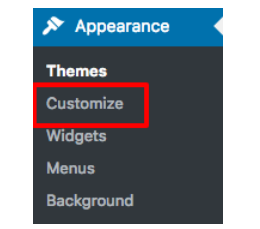
- Go to Appearance > Customize in your WordPress dashboard.
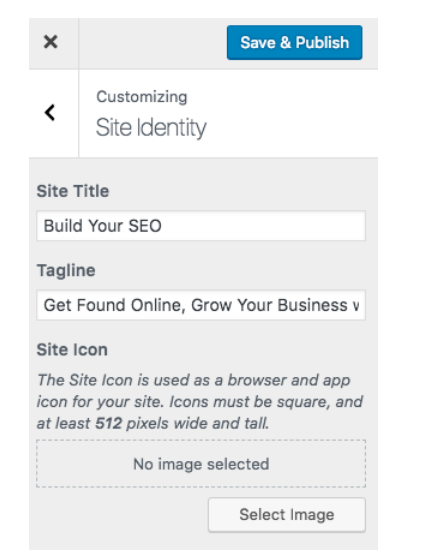
- Click on Site Identity from the left sidebar:
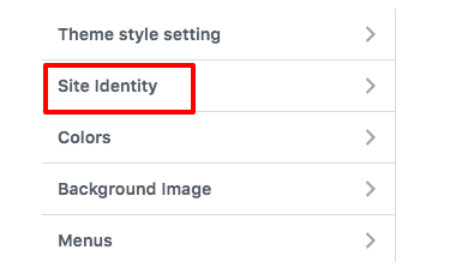
- Find the Site Icon option and upload your favicon image
- Select the image from your Media Library and save changes.
How to Add a Favicon on Wix and Shopify
You can easily add a favicon on website builders like Wix and Shopify through their built-in settings.
Wix
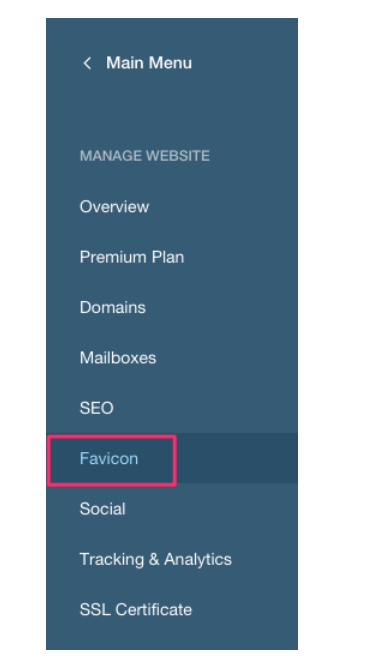
- Go to Manage Website > Favicon in your Wix dashboard
- Click on Upload Favicon:
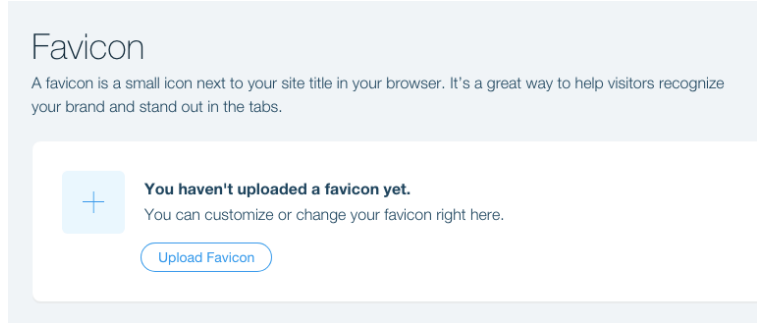
- Select or upload your image file
- The system will automatically save your changes
Shopify
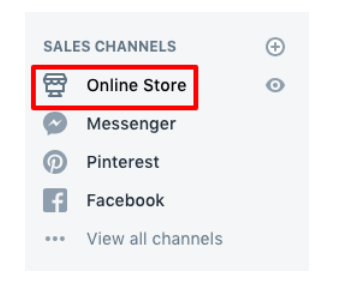
- Go to Online Store in your Shopify admin panel:
- Click on Customize:

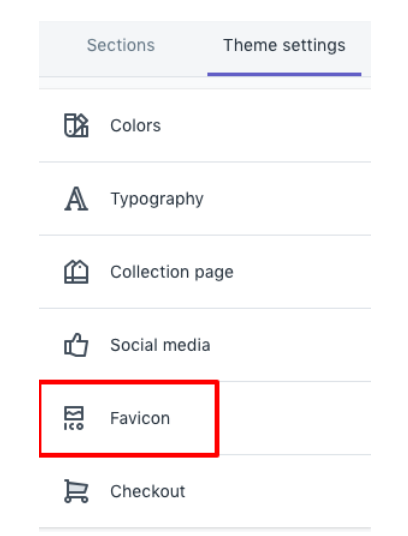
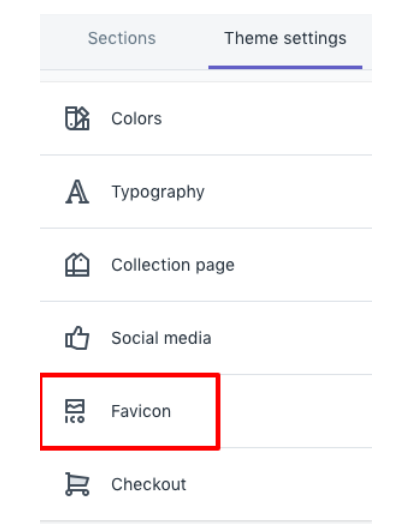
- Open Theme Settings > Favicon:
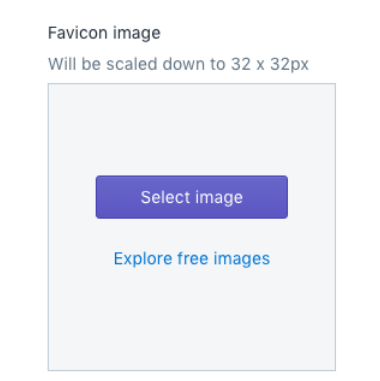
- Upload or select your favicon from the Media Library:
- Save your changes to apply the favicon:
How to Add a Favicon Using HTML
If you are building a website with custom code, you can add a favicon by inserting a small line of HTML inside the <head> section of your page.
- Place your favicon file in your website folder (often the root directory)
- Open your HTML file and find the <head> section
- Add the favicon link using the following code:
<link rel=”icon” type=”image/png” href=”favicon.png”>
- If your favicon is stored in a different folder, update the file path in the href attribute (for example, images/favicon.png)
- You can also add multiple favicon sizes for better compatibility across devices:
then, <link rel=”icon” type=”image/png” sizes=”16×16″ href=”favicon-16×16.png”>
or also <link rel=”icon” type=”image/png” sizes=”32×32″ href=”favicon-32×32.png”>
<link rel=”icon” type=”image/png” sizes=”48×48″ href=”favicon-48×48.png”>
<link rel=”apple-touch-icon” sizes=”180×180″ href=”apple-touch-icon.png”>
- Save your HTML file and refresh your website to see the favicon appear in the browser tab
Tips for Designing a Favicon
A good favicon should be simple, clear, and easy to recognize even at very small sizes.
- Keep the design simple and avoid unnecessary details
- Use a clean and bold shape that remains visible at small sizes
- Base the favicon on your logo or a recognizable part of it
- Make sure it reflects your brand identity and style
- Use strong, contrasting colors to improve visibility
- Avoid too much text; if needed, use only 1–3 characters or initials
- Test how the favicon looks on different backgrounds and devices
Common Favicon Challenges
While favicons are simple in appearance, creating and using them effectively comes with a few practical challenges.
- Limited design space makes it difficult to include detailed elements or full logo designs
- Ensuring the icon stays clear and recognizable at very small sizes can be challenging
- Browser and device compatibility may affect how consistently the favicon appears
- Poorly optimized files can slightly impact website performance and load times
- Small size can create accessibility limitations, as details may not be easily visible
Conclusion
A favicon may be small, but it plays an important role in how a website is recognized across browsers, devices, and search results. It strengthens branding, improves user experience, and makes navigation easier for visitors.
Creating and adding a favicon is also simple using different tools and platforms like WordPress theme, Wix, Shopify, or HTML. Overall, it is a small detail that adds a more professional and complete look to any website.
Frequently Asked Questions (FAQs):
What is a favicon used for?
A favicon is a small icon that represents a website in browser tabs, bookmarks, and search results. It helps users quickly identify and recognize a website.
Is a favicon the same as a logo?
No, a favicon is not the same as a logo, but it is often based on a simplified version of it. It is designed to work at a very small size where full logos usually do not fit.
How long does it take for a favicon to appear in Google search results?
It can take a few days to a few weeks for Google to show your updated favicon in search results. This depends on how quickly Google crawls and updates your website.
Why is my favicon not showing up in the browser?
This usually happens due to browser caching or incorrect file placement. Clearing your cache or checking the file path often fixes the issue.
Can a favicon improve SEO?
A favicon does not directly improve search rankings. However, it can indirectly help by improving user experience and click-through rates.
Can I use PNG instead of ICO for a favicon?
Yes, PNG is widely supported and commonly used for favicons today. ICO is still useful because it supports multiple sizes in one file.
What size should a favicon be?
The standard favicon size is 16×16 pixels for browser tabs. However, multiple sizes like 32×32 and 180×180 are also commonly used for different devices.
Where should the favicon file be located?
The favicon is usually placed in the root directory of your website. This makes it easier for browsers to automatically find and load it.
Are favicons still used?
Yes, favicons are still widely used across all modern websites and browsers. They remain important for branding and user recognition.
What should my favicon look like?
A favicon should be simple, clear, and easy to recognize at a small size. Most websites use a simplified logo, symbol, or initials.
