

Having a strong online presence has become essential for any business, and Google My Business (GMB) is one of the most powerful tools to achieve it. GMB allows businesses to appear in local search results, Google Maps, and showcase essential information to potential customers.
Properly setting up and optimizing your listing can drive more traffic, build credibility, and increase engagement.
This complete guide will help you set up a Google My Business Profile in a straightforward way. Let’s start.
What is Google My Business?
Google My Business (GMB) is a free tool provided by Google that allows businesses to manage their online presence across Google Search and Google Maps. By creating a GMB listing, businesses can display essential information such as their address, phone number, website, hours of operation, and customer reviews.
It also enables businesses to post updates, share photos, and engage directly with customers.
Essentially, GMB acts as a digital storefront, helping potential customers find your business, learn about your offerings, and make informed decisions, all while boosting your visibility in local search results.
Why Creating a Google My Business is Beneficial
Creating a Google My Business (GMB) profile offers numerous advantages for businesses looking to grow their online presence and connect with local customers.
Here’s why it’s so valuable:
1. Boosts Local SEO and Visibility
A GMB listing significantly improves your chances of appearing in local search results and on Google Maps. When users search for products or services near them, having an optimized GMB profile helps your business stand out, attracting more potential customers.
2. Increases Customer Engagement
GMB allows businesses to interact directly with customer reviews, Q&A, and messaging. Prompt responses to inquiries and reviews foster trust, improve customer relationships, and encourage repeat business.
3. Provides Key Insights and Analytics
Google My Business offers valuable data about how customers find your business, including search queries, views, clicks, and direction requests. These insights help you make informed decisions to improve marketing strategies and customer experience.
4. Showcases Your Business Effectively
With photos, videos, posts, and business descriptions, GMB lets you highlight your products, services, and unique selling points. A visually appealing and informative listing can influence customer decisions and enhance brand credibility.
5. Cost-Effective Marketing Tool
GMB is free to use, making it an affordable yet powerful way to promote your business online. Compared to paid advertising, it offers sustainable long-term benefits by improving visibility and driving organic traffic.
How to Set Up Google My Business? Step-by-Step Process:
Setting up Google My Business is straightforward, but following each step carefully ensures your listing is accurate and optimized.
Here’s a detailed walkthrough:
Step 1: Sign in to Google My Business
- Open your browser and go to Google My Business.
- Click the “Start now” button at the top-right corner.
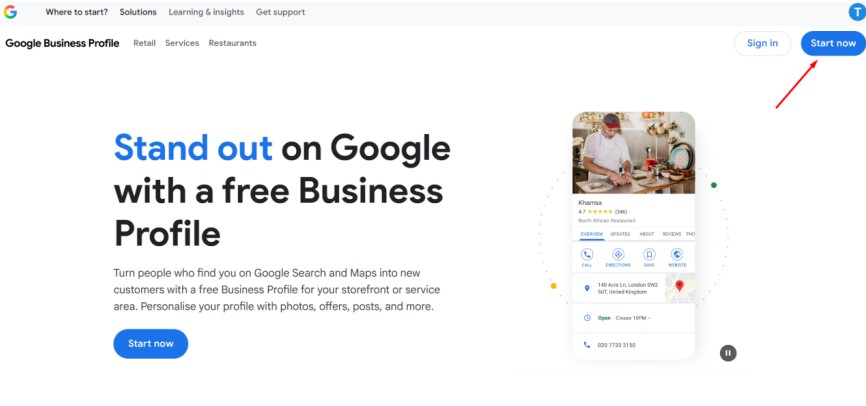
- Sign in with your Google account. If you don’t have one, click “Create account” and follow the prompts.
Step 2: Add Your Business
- Now, add your business details, such as name and category. (e.g., “Bakery,” “Plumber,” “Digital Marketing Agency”).
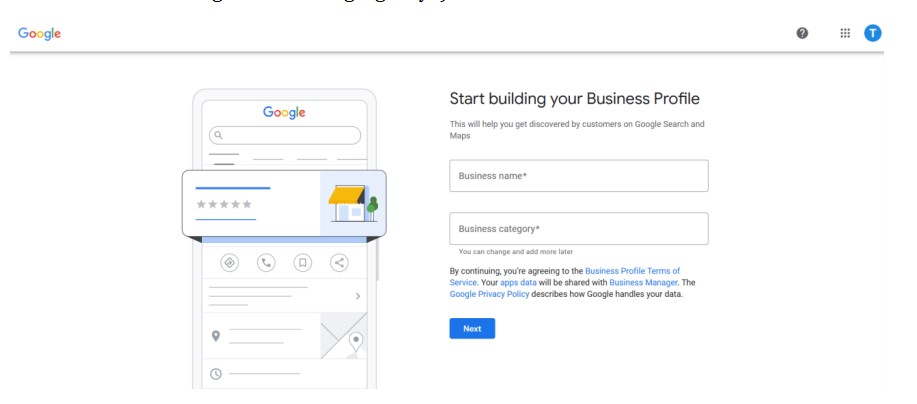
- Google will use this category to match your business with relevant searches, so choose carefully.
Step 3: Add Location Details
- If you have a physical location, select “Yes” and enter your business address.
- If you serve customers at their locations (like a delivery or service business), select “No” and specify your service areas.
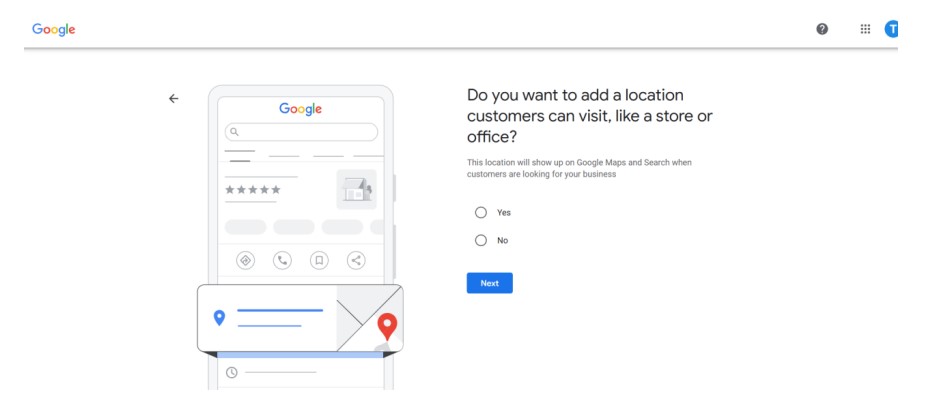
- Confirm the placement of your location on Google Maps for accuracy.
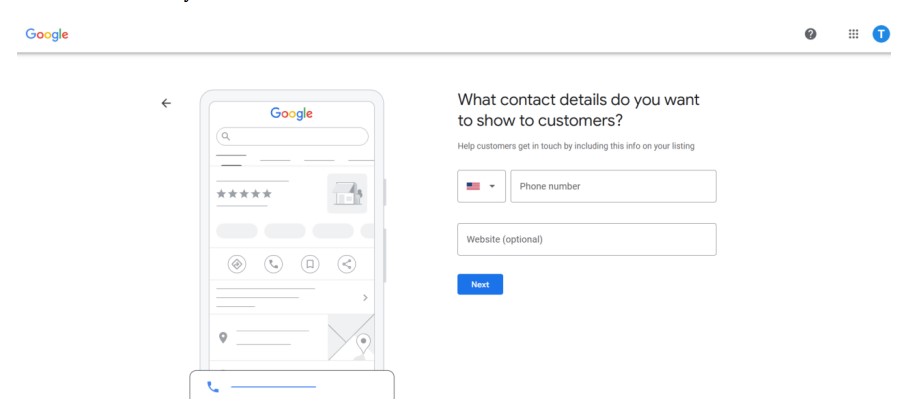
Step 5: Enter Contact Information
- Add your business phone number and website URL.
- Ensure the phone number is active and monitored regularly, as customers will use it to contact you.
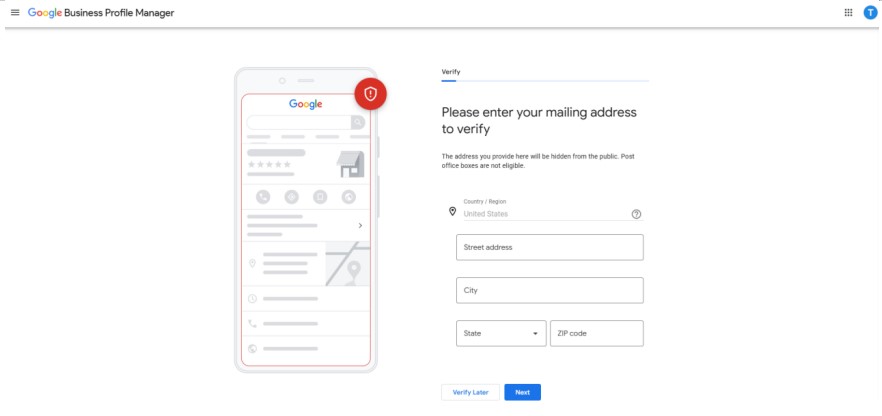
Step 6: Verify Your Business
- Now, complete the verification procedure (you can verify later as well).
Step 7: Add Business Hours
- Specify your regular hours of operation.
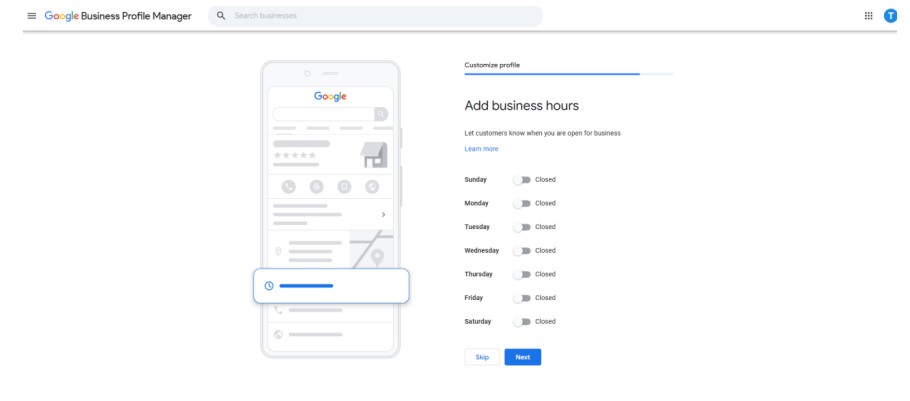
- Include special hours for holidays or seasonal changes to avoid misleading customers.
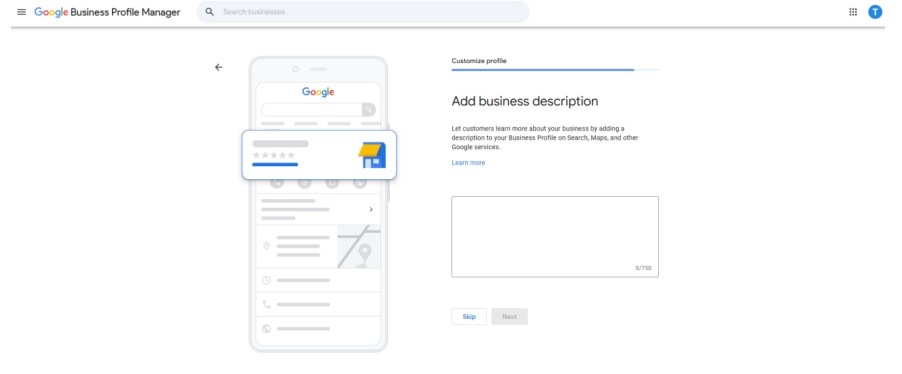
- Add business description.
Step 8: Add Photos and Videos
- Upload high-quality photos of your storefront, products, team, and services.
- Videos (30 seconds or less) can give customers a virtual tour or highlight special features.
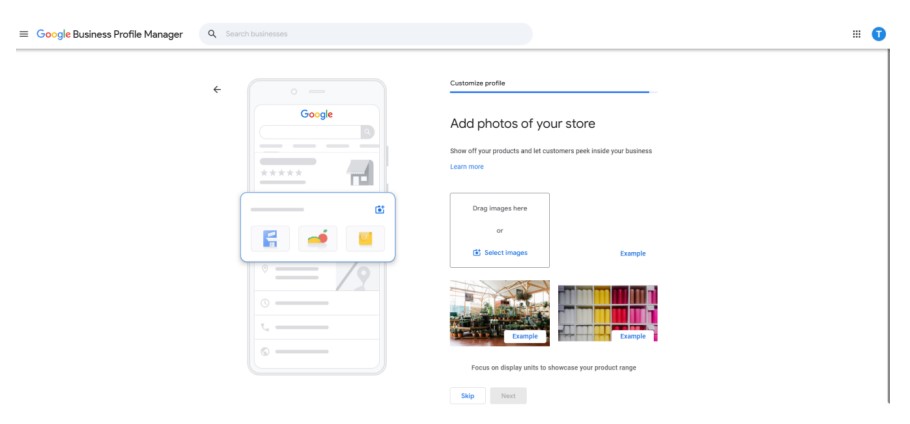
- Visual content increases engagement and builds trust.
Step 9. Finalize:
- Now, finalize the profile creation by clicking on “Continue.
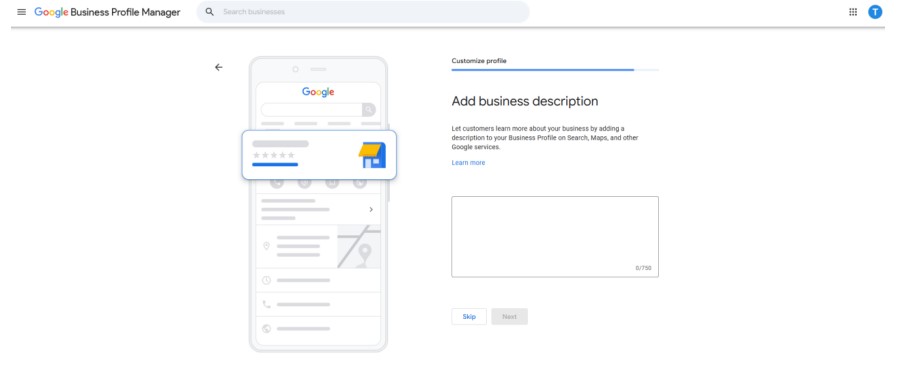
- Your profile will be visible on GMB after verification.
Tips for Using Google My Business in The Best Way:
Optimizing and actively managing your Google My Business profile can significantly boost visibility, engagement, and conversions. Here are some practical tips to make the most of your listing:
- Accurate Information: Keep your business hours, contact details, and address updated to avoid confusing customers.
- High-Quality Visuals: Upload clear photos and videos of your storefront, products, team, and events to engage visitors.
- Review Management: Respond promptly and professionally to both positive and negative reviews to build trust.
- Use Posts: Share updates, promotions, or events regularly to keep your listing active and engaging.
- Q&A Section: Answer customer questions promptly and add common FAQs to guide potential clients.
- Attributes & Features: Highlight special features like accessibility, outdoor seating, or free Wi-Fi for quick reference.
- Monitor Insights: Track how customers find your business and what actions they take to optimize your listing.
- Encourage Reviews: Ask satisfied customers to leave reviews to boost credibility and local search rankings.
Final Thoughts:
Setting up and optimizing Google My Business is a crucial step for any business looking to enhance its online presence and attract local customers. By following the steps outlined in this guide, you can create a professional, engaging, and accurate listing that boosts visibility, builds credibility, and encourages customer interaction.
Regularly updating your profile and leveraging GMB’s features ensures your business stays relevant, competitive, and easy to find in local search results.
