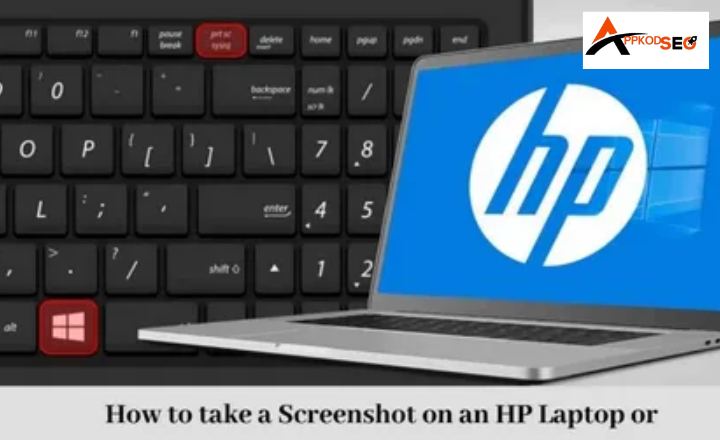
Taking screenshots is a handy skill for work, study, or personal use. Whether you want to save important details, share something interesting, or document a problem, knowing how to capture your screen on an HP laptop can be a real time-saver.
This guide will explore how to take a Screenshot on an HP Laptop, including popular series like HP Envy, HP EliteBook, and more, helping you work smarter and communicate more effectively. And if you’re troubleshooting system issues or setting up a fresh device, you may also need to install Windows via Media Tool to ensure your laptop runs smoothly before capturing important screenshots.
Different Methods for Taking a Screenshot on an HP Laptop
Here’s how to screen capture on an HP laptop with different methods:
Method #1: The Default Method
If you want to take a screenshot of your screen in an instant, the default method is ideal. If your HP laptop is running Windows or Chrome, you can take a screenshot with only one shortcut.
Here are more details about it how to take a screenshot on HP laptop:
- Press the Print Screen button, and the laptop will take a screenshot.
- The Print Screen button is sometimes labeled as PrtSc, PrtScn, or PrtScr. It is usually found on the top-right side of the keyboard
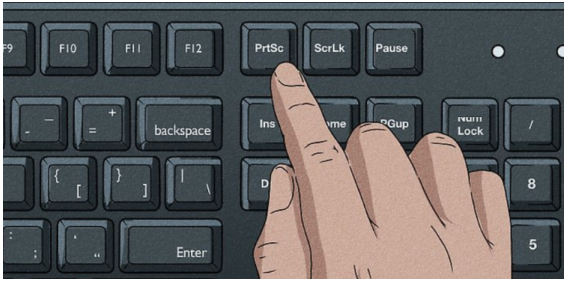
- When you press these buttons together, the screen will blink which means the screenshot has been taken successfully.
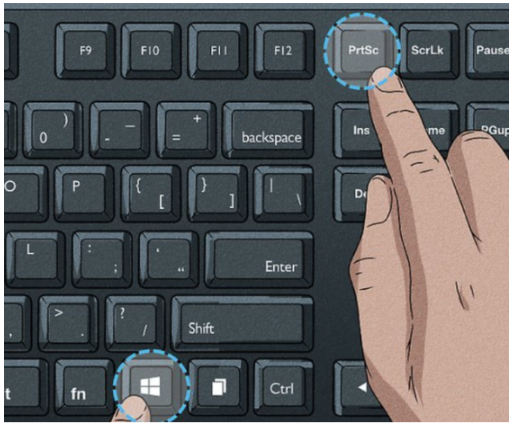
- Some laptops may require pressing the Windows and Print Screen buttons simultaneously.
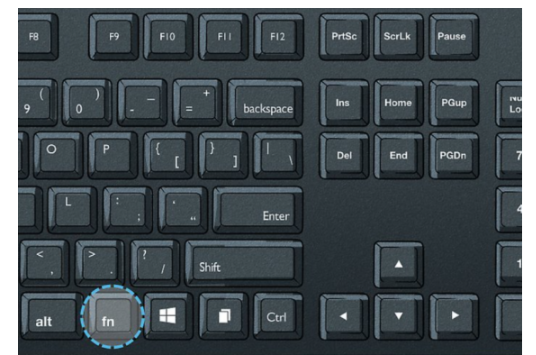
- Similarly, some models may require pressing the “fn” key along with Print Screen (simultaneously) in order to capture the screenshot.
Method #2: Using The Alternate Keyboard Shortcuts
You can try another method by using a keyboard shortcut that combines different keys to take a screenshot. Here’s how:
- Press the Windows + Shift + S keys simultaneously.
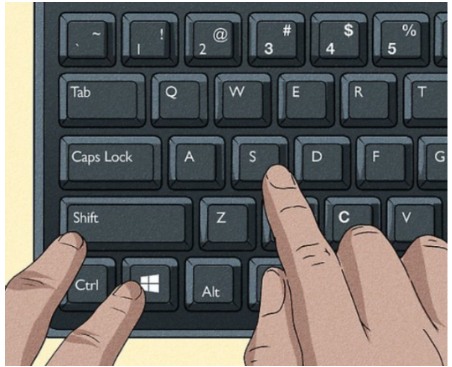
- A tool will appear that you can use to take a screenshot.
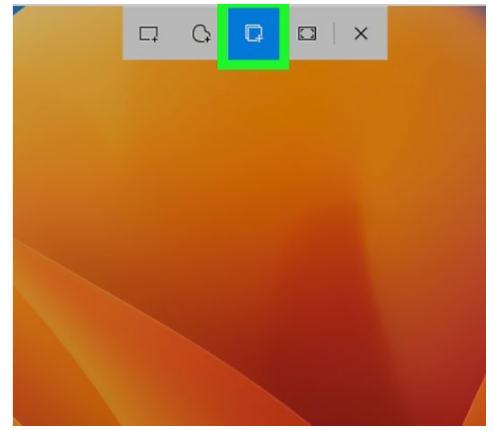
- Simply select the screen area that you want to capture.
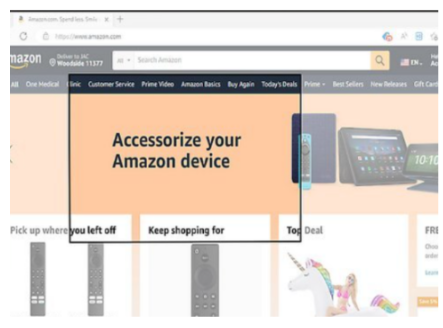
- The screenshot will be copied to your clipboard.
- Now, you can paste it into any image editing tool to save it on your system.
Method #3: Snipping Tool Method
If you truly want to understand how to screenshot on an HP laptop, you need to understand the direct usage method of the Snipping tool. It is available on Windows Vista and above models and can be used to take screenshots easily. I’ve explained this method in detail below:
- Open the search bar and search for the Snipping tool.
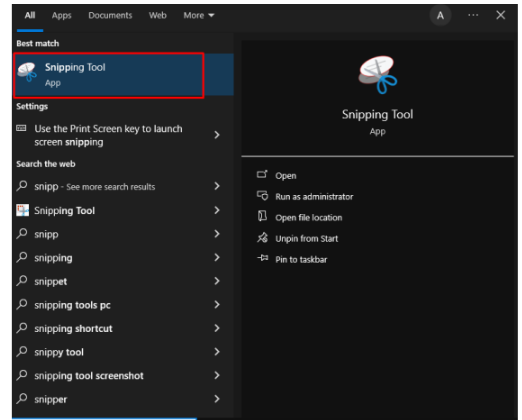
- After opening, click on the “New” option.
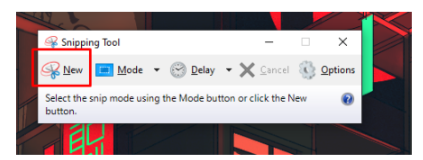
- Now, you can select an area of the screen that you want to capture.

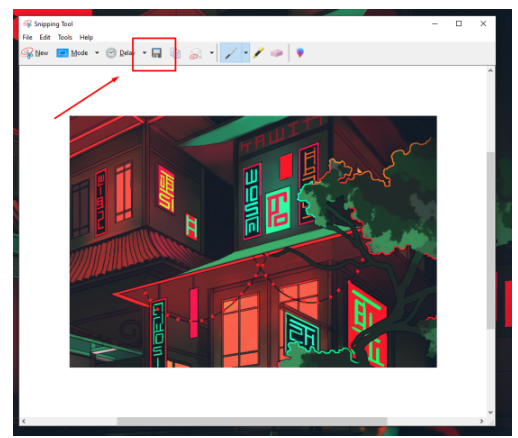
- Once captured, click on the “save” icon to store the image on your laptop.
Method #4: Using Third-Party Tools
Now, you can try utilizing third-party software tools for taking pictures if you don’t want to utilize the built-in Snipping tool or the keyboard shortcuts.
There are a lot of tools on the Internet that make it simple to take screenshots. It is pretty simple to take and modify screenshots with some of these tools because they also include additional editing tools.
There are different tools like AI Sentence Rewriter out there, the usage method is also different for each of them. Still, I am going to provide a general overview of how you can use this method below:
- Open an Internet browser and then search for a screenshot-taking tool for a desktop.
- Pick the tool that you like and install it on your laptop.
- Follow the tool’s instructions and start taking screenshots easily.
Tips for Taking Better Screenshots on an HP Laptop
Taking a screenshot is simple, but there are a few tips that can help you capture clearer, more useful images:
- Clean up your screen first: Close unnecessary windows, tabs, or notifications to ensure a clear, focused screenshot.
- Use the right shortcut for the task: Press Print Screen or Windows + PrtSc for the full screen, Windows + Shift + S for a specific area, and Alt + PrtSc for a single window. In this way, you capture only what you need.
- Check your display settings: Ensure your laptop is set to its recommended resolution for sharper, higher-quality screenshots.
- Annotate or edit immediately: Use Paint, Snipping Tool, or third-party apps to crop, highlight, or add notes right after taking the screenshot.
- Organize your screenshots: Save images in dedicated folders with meaningful names or dates to locate them easily later.
Conclusion
Learning how to take a screenshot on an HP laptop is simple once you know the different methods available. Whether you use built-in keyboard shortcuts, the Snipping Tool, or third-party apps, you can quickly capture and save whatever is on your screen.
With these techniques, you’ll be able to share information, troubleshoot issues, and store important visuals with ease, making your HP laptop even more versatile and user-friendly.